






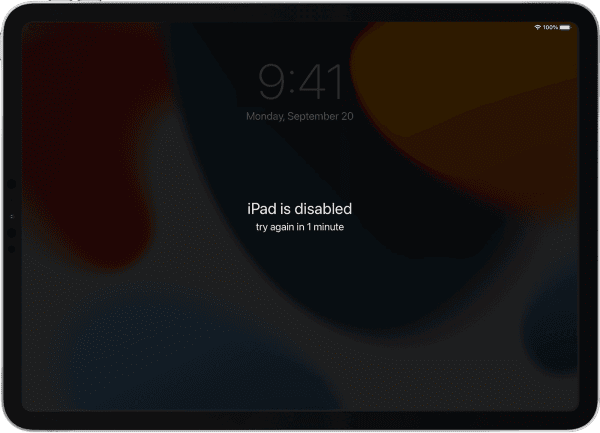
Forgetting your iPad password can be frustrating, especially after multiple incorrect attempts result in your device being locked or disabled. You may see messages like "iPad Unavailable" or "iPad is Disabled," preventing you from accessing your data. Fortunately, it is still possible to unlock your iPad without the password. This guide explains two reliable solutions: Apple's official recovery mode and a faster, more user-friendly alternative using PcGoGo Screen Unlock.
Things to Know Before Unlocking Your iPad
Unlocking methods will erase all data on your iPad
You may need your Apple ID and password to bypass Activation Lock
Regular backups help prevent permanent data loss
Method 1: Unlock iPad Without Password Using Apple Recovery Mode (Official Method)
Apple's recovery mode allows you to erase and restore your iPad without knowing the passcode. This method requires a computer and will delete all data on the device
Step 1: Turn Off Your iPad
First, power off your iPad completely:
iPads without a Home button:
Press and hold one of the volume buttons and the top button until the power-off slider appears
iPads with a Home button:
Press and hold the top (or side) button until the slider appears
Drag the slider to turn off your iPad and wait until it fully shuts down

Step 2: Put Your iPad Into Recovery Mode
Connect your iPad to a Mac or Windows PC using a USB cable, then follow the steps for your model:
iPads without a Home button:
Press and quickly release the volume button closest to the top button
Press and quickly release the volume button farthest from the top button
Press and hold the top button until the recovery mode screen appears
iPads with a Home button:
Press and hold both the Home button and the top (or side) button at the same time until you see the recovery mode screen
If the passcode screen appears, turn off your iPad and try again

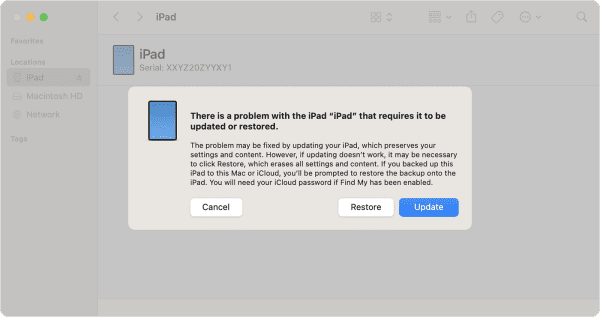
Step 3: Restore iPad Using Finder or iTunes
On Mac (macOS Catalina or later): Open Finder and select your iPad
On Windows or older macOS versions: Open iTunes and select your iPad
When prompted, choose Restore. Your computer will download the necessary firmware and reinstall iPadOS
If the download takes longer than 15 minutes and your iPad exits recovery mode, allow the download to finish, then repeat the recovery mode steps
Step 4: Set Up Your iPad After Unlocking
Once the restore process finishes, your iPad will restart and display the Hello screen
Disconnect the iPad from the computer
Follow the on-screen setup instructions
Restore data from an iCloud or iTunes backup if available, or set it up as a new device
Method 2: Unlock iPad Without Password Using PcGoGo Screen Unlock (Recommended)
If you want a faster and simpler solution, PcGoGo Screen Unlock offers an easy way to remove iPad screen locks without requiring the passcode.
Step 1: Download and Install PcGoGo Screen Unlock
Visit the official PcGoGo Screen Unlock website and download the latest version
Install the software on your Windows
Step 2: Connect Your iPad to the Computer
Use a USB cable to connect your locked iPad to the computer
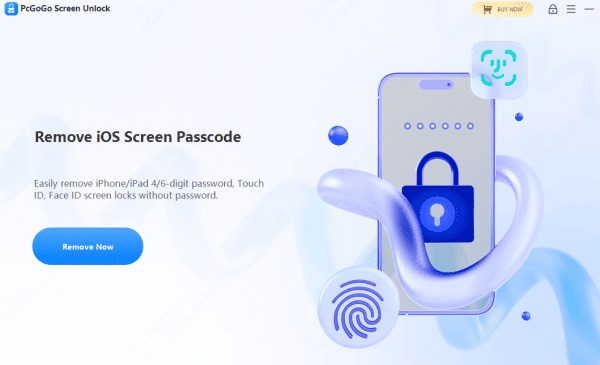
Once detected, select Unlock Screen Passcode and click Remove Now
Step 3: Download the Firmware Package
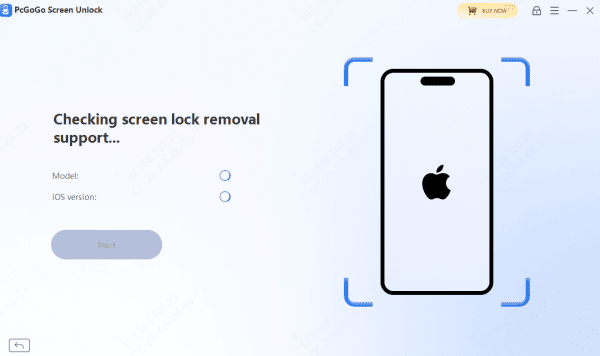
The program will automatically detect your iPad model and iPadOS version
Download the required firmware package and wait for it to complete
Step 4: Start the Unlocking Process
Click Start Removal to begin unlocking
PcGoGo Screen Unlock will remove the passcode, Face ID, or Touch ID
Keep your iPad connected during the process. Within a few minutes, the screen lock will be successfully removed
Tips to Avoid iPad Lockouts in the Future
Enable Face ID or Touch ID
Use a secure but memorable passcode
Back up your iPad regularly with iCloud or a computer
Keep your Apple ID credentials safe
What Happens When Your iPad Is Locked
Apple uses strict security measures to protect your personal information
After several failed passcode attempts, your iPad will temporarily lock, and continued attempts can disable it entirely
Once fully locked, the only way to regain access is to erase the device, which removes the passcode along with all stored data
If you have a backup, you can restore your data after unlocking the iPad
Conclusion
Being locked out of your iPad without a password can be stressful, but it doesn't mean your device is unusable. Apple's recovery mode provides a reliable official solution, while PcGoGo Screen Unlock offers a faster and more convenient alternative. By following the steps in this guide, you can unlock your iPad safely and regain access in just minutes. Regular backups and smart security practices can help you avoid similar issues in the future.
